How to Delete a Google Business Profile Without Losing the Wrong Data
Remove access, close the business, or request Maps removal without confusing account control with deletion of the public listing.
Deleting a profile, leaving an account, closing a business, and removing an invalid Maps listing are four different actions. Pick the wrong one and you may lose owner-added content while the public listing and its reviews remain live. Recovery varies by action, and Google provides no guaranteed timeline for disappearance from Google Search or Google Maps.
No time to read?
- Removing the profile from your account usually ends your management access; it does not erase the public listing.
- Marking the business permanently closed can add a closure label, but the profile may still appear in Search and Maps.
- Reviews generally remain attached to the listing after account-level removal or closure.
- You may be able to reclaim or reopen a profile, but reverification can be required and recovery is not guaranteed.
- Google does not provide a guaranteed time for an approved change or removal to stop appearing everywhere.
Choose the Right Action Before You Delete Anything
Most instructions about how to delete google business profile skip the critical first step: define what you actually want removed.
| Your objective | Correct action | What normally remains public | Recovery path |
|---|---|---|---|
| Stop managing the business from one Google account | Remove that user’s access | The listing, reviews, customer photos, and Maps entity | Another owner can add the user again |
| Remove owner-added content and current managers | Remove profile content and managers | The underlying place may remain on Search and Maps, including reviews | Reclaiming and Ownership verification may be required |
| Show that a real business has stopped operating | Mark it permanently closed | A closed listing may remain visible with a closure label | Reopen the profile and possibly reverify |
| Eliminate a nonexistent, duplicate, or ineligible place | Submit a Maps removal request | The listing remains until Google accepts the edit | Appeal, submit better evidence, or contact support |
Do not use remove Google Business Profile as a catch-all instruction. Removing management access does not delete the public entity. Marking a location closed does not guarantee that it disappears. Requesting removal does not guarantee approval.
Decide whether the problem concerns account access, owner-controlled content, operating status, or the legitimacy of the Maps entity. That decision determines what Google keeps and what you can recover later.
Remove the Profile from Your Google Account
Use this option when an employee, agency, former owner, or secondary account should no longer manage the profile. It is an access-control action, not a public deletion.
Google changes interface labels and menu placement, but the workflow generally follows these steps:
- Sign in with the Google account that manages the verified profile.
- Open the business controls through Google Search, Google Maps, or Business Profile Manager.
- Find the profile settings, then open the people, users, or access-management area.
- Select the user whose access should end.
- Choose the removal option and confirm it.
- Verify that at least one appropriate owner still has access.
A primary owner cannot simply abandon the profile while retaining primary ownership. Transfer primary ownership to another eligible user first, then remove the departing account. This is especially important when an agency relationship ends or an employee controls the only accessible login.
If your objective is broader, look for the control that removes profile content and managers. That action can remove material supplied through the owner account, along with the current management structure. It still does not normally erase the underlying place from Google Search or Google Maps. Customer reviews and other user-contributed information are generally connected to the public place, not to the manager who leaves.
Management controls may be unavailable until Ownership verification is complete. Google may also require verification again after significant access or ownership changes.
Do not choose mark business permanently closed merely because one manager is leaving. Operational status and account permissions solve different problems.
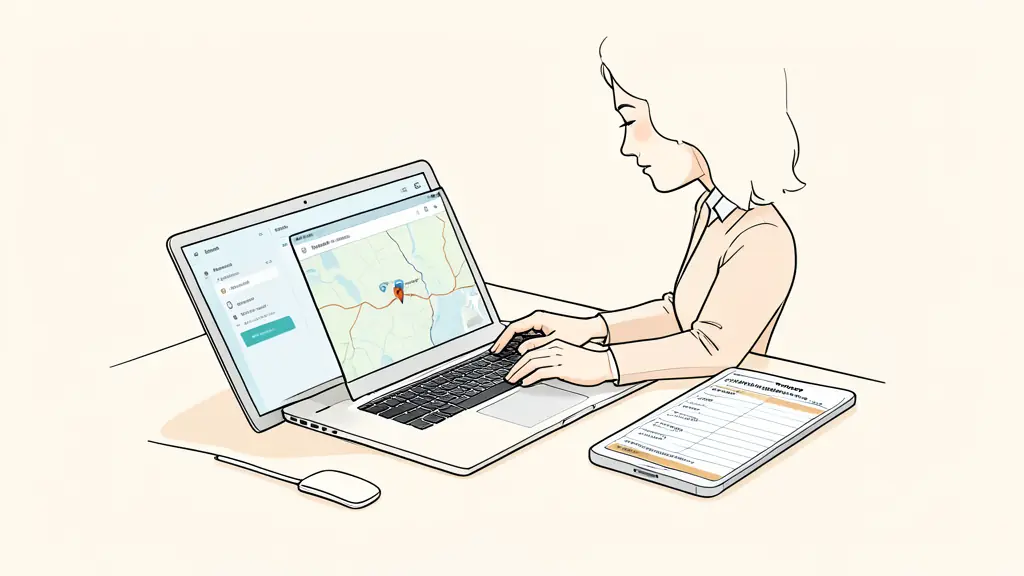
Mark a Business as Permanently Closed or Request Removal
A real business that has ceased operating should usually be marked Permanently closed. A listing for a place that never existed, is duplicated, or is not eligible should be reported for removal instead.
When the business has actually closed
Manage the verified profile, open Edit profile or the relevant business information controls, and locate the closure setting. Select the permanent closure option and confirm it.
Before doing that, verify that this is not one of these situations:
- A temporary or seasonal shutdown
- A relocation to a new address
- A change in ownership
- A rebrand that still represents the same operating business
- A temporary inability to serve customers
Permanent closure sends a strong operating-status signal. It should not be used as a shortcut for changing an address, removing an old manager, or resolving a verification problem.
When the listing should not exist
Open the listing in Google Maps or Google Search and use Suggest an edit. Choose the option indicating that the place is closed, nonexistent, duplicated, or otherwise should be removed. Select the reason that most accurately reflects the real-world situation.
Google may evaluate public records, imagery, business details, duplicate entities, and information supplied with the edit. If additional evidence is requested, provide documentation that directly supports the selected reason. Do not describe a duplicate as nonexistent or an ineligible operation as permanently closed merely because those choices appear easier.
To remove business from Google Maps, your evidence and removal reason must match what exists in the real world. Google can reject the request or leave it pending when the available information is inconclusive.
What Google Keeps After Each Action
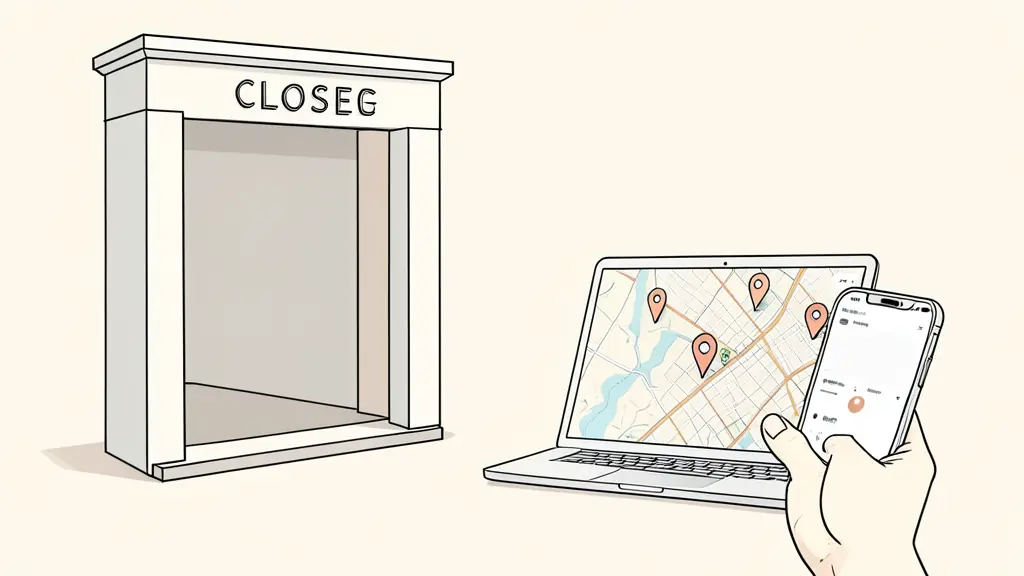
The public listing and the management account are separate layers. This distinction explains why a profile can remain visible after you remove it from Business Profile Manager.
Reviews are generally attached to the public place. Removing a manager, deleting owner-added content, or disconnecting your account does not automatically remove customer reviews. Customer-uploaded photos may also remain.
Owner-controlled assets can be affected differently. Posts, owner photos, business descriptions, review responses, and other contributions may be removed or lose their management connection when profile content and managers are deleted. Because the interface and treatment of individual content types can change, preserve copies of anything important before confirming removal.
Visibility depends on the action:
- Removing one user normally leaves the public entity and its reviews intact.
- Removing owner content and managers may leave an unmanaged Maps listing.
- Marking the business closed can leave the listing visible with a Permanently closed label.
- Submitting a Maps edit leaves the entity visible until Google processes and accepts the request.
- An accepted removal may still take time to propagate across Search and Maps.
Local rankings can also change without the entity disappearing. A closed business is no longer positioned like an active option for customers. Removing useful owner content may weaken relevance or conversion performance. Pending edits can create a period in which different surfaces show different information.
There is no reliable fixed period after which a listing will vanish. Processing, review, and propagation vary. Before trying to recover Google Business Profile, identify exactly which layer changed: access, content, status, or the Maps entity.
Recovery Depends on What You Removed
If you marked an operating business closed by mistake, manage the profile and use the reopening control. Confirm the current hours, address, category, and contact information. Google may require reverification before restoring full management or displaying the business as open.
If you removed profile content and managers but the place remains public, claim the unmanaged listing. Select the ownership or claim option on the public profile and complete the required verification.
If only your access was removed, contact another owner. That owner can invite your Google account and assign the appropriate role. When the former primary owner is unavailable, use Google’s ownership-request process rather than creating a new listing.
If Google removed the entity after a policy or eligibility decision, recovery is less predictable. Review the profile against the eligibility rules, gather proof that the business operates as represented, and use the available appeal or support process. Reverification may be required, and restoration is not guaranteed.
If your real objective is to delete Google business reviews, deleting or disconnecting the profile is the wrong procedure. Reviews generally remain with the place. Report an individual review only when there is a legitimate policy basis, and respond professionally when the review is unfavorable but allowed.
Fix Ownership, Pending Edits, and Listings That Stay Live
When a profile remains visible, do not repeat random deletion steps. Diagnose the unresolved layer first.
Use this escalation checklist:
- Confirm the intended result. Decide whether you need to remove a user, transfer ownership, delete owner-added content, close a real business, or challenge an invalid Maps entity.
- Document the real-world status. Save current storefront details, operating information, ownership records, and any evidence relevant to the requested change.
- Audit permissions. Identify the primary owner, remaining owners and managers, inaccessible former-employee accounts, and pending invitations.
- Request access or transfer ownership. Use the established listing instead of creating a replacement.
- Submit the appropriate edit. Choose permanent closure only for a business that has genuinely ceased operating. Choose the accurate removal reason for duplicates, nonexistent places, or ineligible listings.
- Track pending changes. Keep screenshots, confirmation messages, dates, case numbers, and the Google account used for each submission.
- Escalate consistently. If an edit remains pending or is rejected, provide the same factual explanation and supporting evidence through the available support or appeal path.
- Check for duplicates. Compare names, addresses, phone numbers, categories, and map locations before taking further action.
- Avoid creating a replacement profile. A second listing can split reviews, create ownership conflicts, and introduce another duplicate that must be resolved.
For inaccessible former-employee accounts, prioritize ownership recovery over deletion. For duplicate profiles, preserve the legitimate entity and challenge the duplicate. For a listing that remains visible after closure, confirm that it carries the correct status rather than assuming the edit failed.
The safest recommendation is simple: preserve the established Maps entity unless the place is genuinely invalid. Transfer access when people change, update the profile when business facts change, mark it closed only when operations end, and request removal only when the listing should not exist.
Envie d'aller plus loin ?
Laisse ton email, on te prévient dès qu'un nouvel article sort.